
Help
Create and publish your first form
This walkthrough builds one small form from start to finish: a project enquiry with four questions and one follow-up. It takes a few minutes, and by the end you’ll have a live link and a test response to look at.

Before you start
You need a free Formaverse account. Once you’re signed in, Your forms lists everything you’ve made. Press New form to start an empty one.
Add your questions
Give the form a title, then add questions one at a time.
- Click the title, “Untitled form”, and type a name, such as “Project enquiry”.
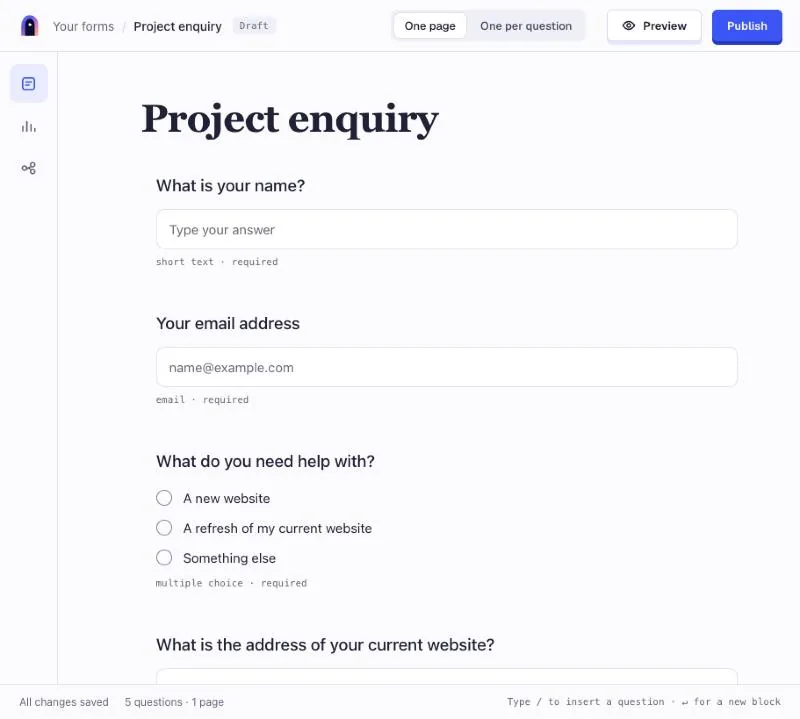
- Click the line below the title and type /. A menu of question types opens.
- Choose Short text and write the question: “What is your name?”.
- Press Required under the question, so the form can’t be sent without it.
- Click at the end of the question, press Enter and type / again to add the next one. Add an email question and a multiple choice question, “What do you need help with?”, with three options.
Add a follow-up
Add a Link question, “What is the address of your current website?”. Under it, choose Show when, pick “What do you need help with?” and the answer “A refresh of my current website”, then press Done. The question now appears only for people who choose that answer.
Finish with one more multiple choice question, “When would you like to start?”, with the options This month, In the next three months and I’m not sure yet.
Choose a layout and preview
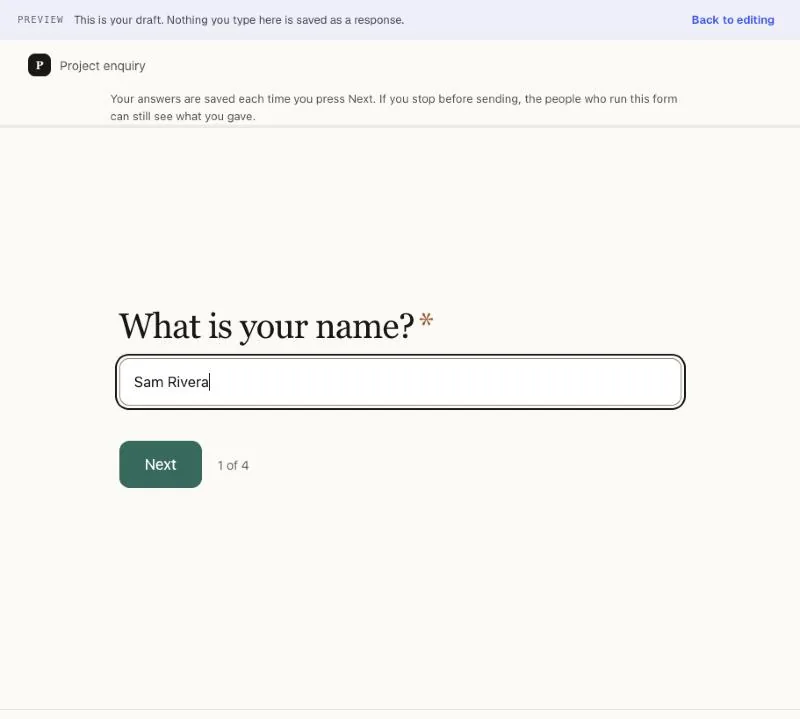
At the top of the editor, choose One page or One per question. Then press Preview to try the form as a respondent would. The preview says “This is your draft. Nothing you type here is saved as a response.”, so you can test freely. Press Back to editing when you’re done.
Publish and share
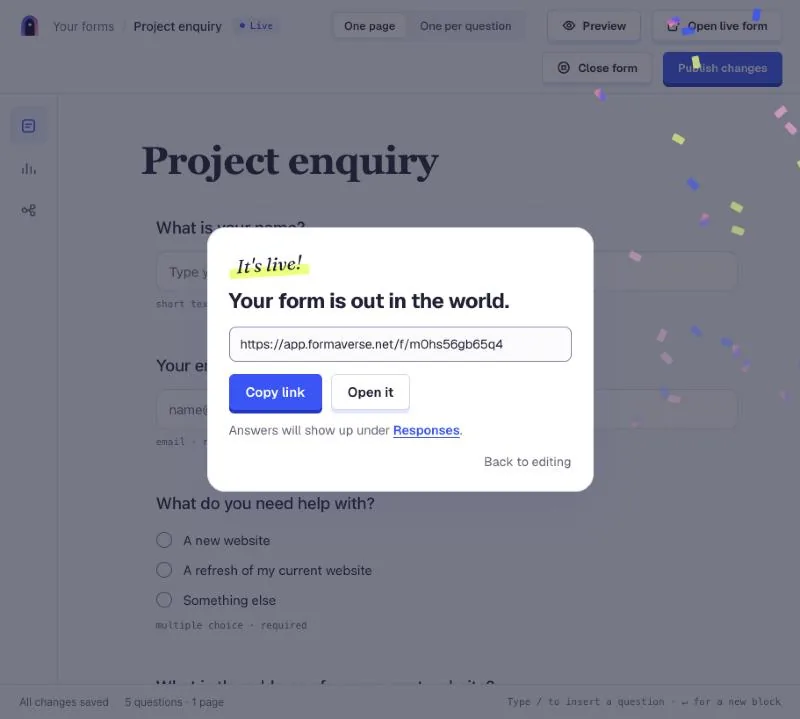
Press Publish. The form goes live straight away, and a box shows its public link with Copy link and Open it. Answers will show up under Responses.
Once a form is live, the editor shows Live beside its name. If you edit it afterwards, it shows Unpublished changes until you press Publish changes.
Send a test response
Press Open it and fill in the form yourself, using answers that are clearly a test, such as the name “Test response”, and send it. You’ll see “Thanks. Your answers are in.”
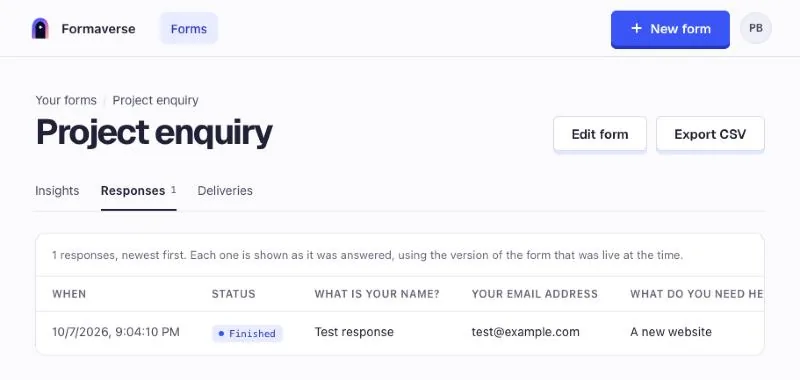
Back in Your forms, open the form and choose the Responses tab. Your test response is at the top of the table, newest first, and stays there alongside real ones. The Insights tab shows views, how many people started and finished, and where people stop.
If something isn’t right
- Can’t find the link? Open the form in the editor and press Open live form, then copy the address from your browser.
- Answers from the preview aren’t in Responses? That’s expected. The preview never saves answers. Only the live form does.
- Made a change that people can’t see? Look for Unpublished changes beside the form’s name, and press Publish changes.
- A question you expected is missing? Check its Show when rule, and try the answer that should reveal it.
Next step
Create your first formKeep reading

Client intake questions
Choose and word the questions that make a clearer brief.

Layouts
Same questions. Your kind of rhythm.

Responses and insights
See what people said, and where they stopped.
That idea in your head?
Give it a form.
You bring the curiosity. We’ll bring the checkboxes.
Make something, freeFree to start. Yours to make.